IPTV Channel Viewer: Preview Streams Before You Commit
How to use an IPTV channel viewer to preview channels from a playlist or Xtream login - names, logos, groups, and stream health without full player setup.
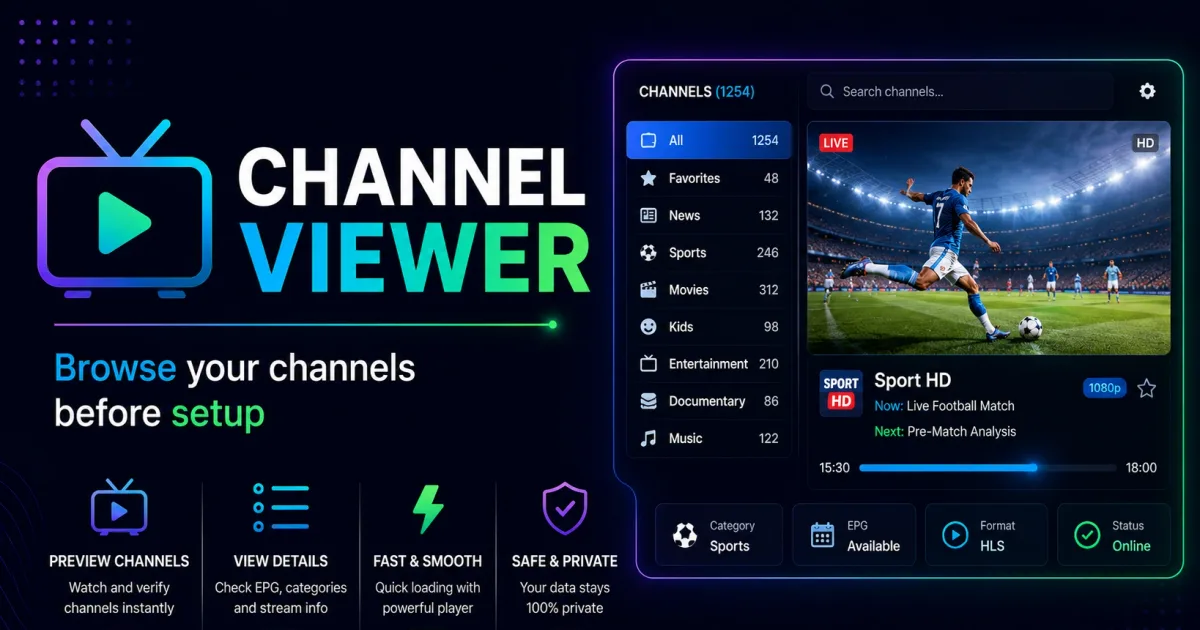
An IPTV channel viewer is the inspection tool between a raw playlist and a full player: it lists the channels in your subscription — names, logos, groups, stream health — so you can preview and check before you commit to a player setup. This guide explains what viewers show and how to use them on your own service.
What a channel viewer shows
From an M3U playlist or Xtream Codes login, a viewer builds a browsable channel list:
- Channel name and logo — from
#EXTINFattributes or the API stream data. - Group/category — the
group-titleor category field, so you can browse “News,” “Sports,” etc. - Stream status — a quick check of whether each stream resolves and responds.
- Preview — often a built-in or VLC-launched preview of a selected channel.
It’s the visual companion to the IPTV checker: the checker tells you the service works, the viewer shows you what’s actually in it.
Getting the channel data yourself
You can replicate what a viewer does with the API:
# List every live stream with metadata
curl "http://portal.example:8080/player_api.php?username=USER&password=PASS&action=get_live_streams"
The response includes name, stream_icon, category_id, and stream_id per channel — everything a viewer displays. Categories come from get_live_categories. Full details in The Xtream Codes API.
For M3U-based services, the playlist itself holds the same fields in #EXTINF attributes — see Xtream Codes M3U.
Reading the metadata
A channel list is only useful if you can trust its labels, and those labels come straight from the source data. Knowing what each field means helps you spot problems early:
stream_idis the stable key for every channel. It is what the live stream URL path uses, so matching a region to an ID never goes stale even when a channel is renamed.category_idandgroup-titleseparate the structure from the display. If channels appear under the wrong group, the mismatch usually lives here rather than in the player.tvg-id(in M3U) is what maps a channel to its programme guide. A viewer showing logos and groups but empty guides is telling you thetvg-idvalues do not match the feed - a data problem, not a playback one.
Comparing two sources
A viewer is especially useful when the same service is available as both an Xtream login and an M3U playlist. Listing both side by side exposes discrepancies:
- Channels present in the API but missing from the M3U (or vice versa) usually mean the playlist was generated at an earlier time or with a different
type. - Logo and name differences tell you which source your player should prefer, since apps render whichever list you feed them.
- An M3U with fewer groups than the API was likely generated without
type=m3u_plus, which drops thegroup-titleattributes. See Xtream converter.
None of this changes the underlying service - it only tells you which list your player will actually display.
Previewing a single channel in VLC
Every channel has a direct stream URL. For a quick preview, open it directly in VLC:
http://portal.example:8080/live/USER/PASS/1001.m3u8VLC handles the stream like a viewer preview would. If it plays cleanly, the channel is healthy; if it stutters, see Buffering test.
Choosing a channel viewer
Prefer a viewer that:
- Works locally — it needs your credentials or playlist URL to build the list, so a web viewer is sending that to a stranger. See Xtream Codes security.
- Is read-only — a viewer that also offers to “optimize” or “modify” your portal should be treated as suspicious; normal accounts have no write API.
- Integrates with a real player — the best “viewer” is often the channel browser inside a player you already use (TiviMate, IPTV Smarters, and others). See Xtream Codes player.
When a viewer is worth it
- Before setup — confirm the subscription has the channels you care about.
- After a provider switch — check the new playlist’s naming, groups, and logos are usable.
- Spot-checking health — catch dead streams without opening each channel in a player.
Related reading
- Xtream Codes Player — the full player apps, most of which include a channel browser.
- IPTV Checker — confirm the service works before browsing it.
- The Xtream Codes API — the data behind every channel list.
Frequently asked questions
What is an IPTV channel viewer?
A lightweight way to browse the channels in a playlist or Xtream login — names, logos, groups, and a quick stream check — without committing to a full player setup.
Is a channel viewer the same as a player?
Not quite. A viewer is for inspection and quick previews; a player is for daily use with a guide, favorites, and recording. Many players include a viewer-like channel browser.
Can I preview a channel without a viewer?
Yes. Every channel has a direct stream URL, so you can preview any single channel in VLC. A viewer just makes browsing dozens of channels manageable.
References
Written by
Alex CarterTechnical Writer & IPTV Technology Analyst
Alex Carter is a technical writer and streaming-technology analyst with over a decade of experience documenting IPTV infrastructure, media player software, and streaming protocols. Alex has worked hands-on with Xtream Codes, M3U, and EPG tooling across Fire TV, Android, and smart-TV platforms, and writes approachable guides that respect both the reader's time and the legal boundaries of streaming technology.
- 10+ years documenting streaming and IPTV technologies
- Practical experience with Xtream Codes, M3U, EPG, and player software
- Focused on accurate, sourced, and privacy-respecting guidance
Related guides
troubleshooting
IPTV Checker: How to Test Whether an IPTV Service Works
An IPTV checker tests whether your subscription actually works: valid credentials, reachable portal, working streams, and channel counts. This guide covers what these tools measure and how to run the checks on your own service.
fundamentals
M3U to Xtream Codes Converter: Convert Between Formats
M3U and Xtream Codes use different formats for the same streams. This guide covers how to convert between them and what changes in the process.
fundamentals
M3U Validator: How to Check an Xtream Codes Playlist
An M3U validator checks a playlist's structure and stream URLs so you can find broken or malformed entries before loading it. This guide covers what validators look for and how to run them on your own playlist.