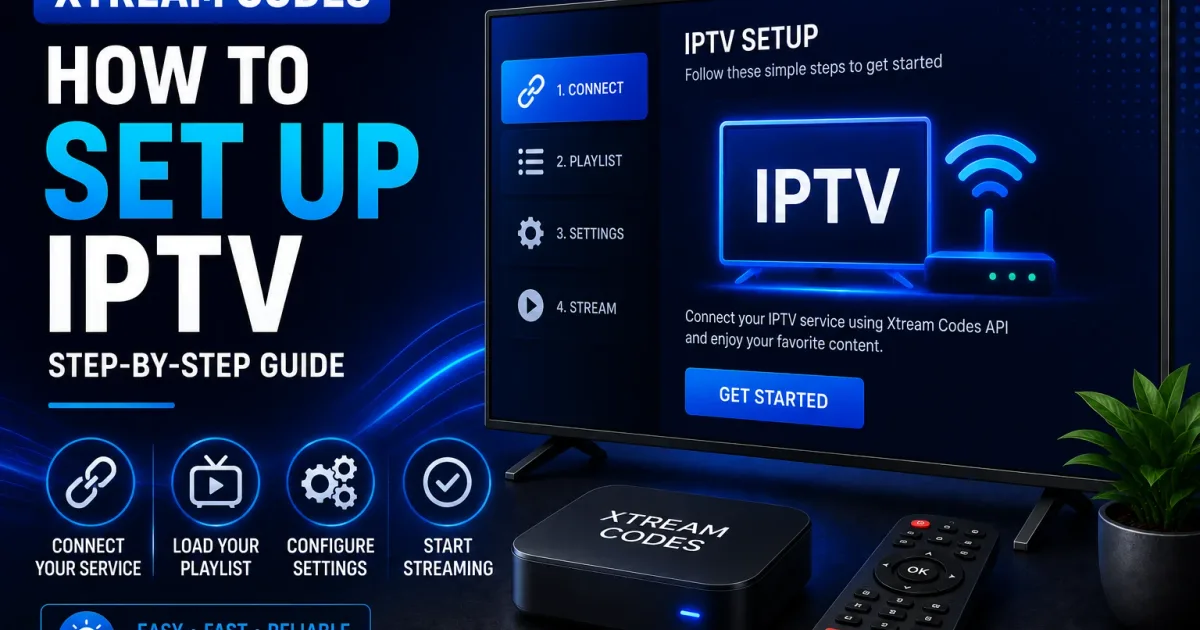
Xtream Codes Setup: Add Your Account to Any Player
How to set up Xtream Codes in any player — enter your host, username and password, verify channels load, and add your EPG. Works for TiviMate, IPTV Smarters, Kodi and more.
Setting up Xtream Codes is a short, repeatable process. This guide gives you the four steps that work on every device, with specifics for the most common platforms.
Step 1 — Collect your credentials
Before opening any app, gather these three values from your provider:
- Server address (host and port, e.g.
portal.example.com:8080) - Username
- Password
If anything is unclear, the provider’s setup page is authoritative. See Xtream Codes URL explained for what each part means.
The three values are the whole account
There is no extra setup key, device code, or activation token. The host, username, and password are the entire security model — keep them together and private, and you can set up Xtream Codes on any compatible player.
If your provider sent a single long link such as http://portal.example.com:8080/alice123/s3cret, all three values are inside it. The first part (up to the last two slashes) is the host, the last two segments are the username and password.
Step 2 — Choose a player for your device
- Android TV / Fire TV — TiviMate or XCIPTV (remote-friendly, guide-first).
- Phones / tablets — IPTV Smarters (cross-platform and simple).
- Desktop — VLC for a quick playlist test, Kodi for a full media center.
- Smart TVs (Samsung/LG/Apple TV) — IPTV Smarters or platform-specific apps; the selection is smaller than Android.
- Not sure — start with IPTV Smarters; it runs almost anywhere.
Compare the options in our player field guide and the player article.
Not every app has native Xtream Codes support
Some apps only accept an M3U playlist URL. They still work, but you lose automatic categories and guide setup. If an app offers both “Xtream Codes” and “M3U URL” login types, choose Xtream Codes for the best experience.
Step 3 — Add your account
Every player is slightly different, but the flow is the same:
- Open the app and choose “Xtream Codes” (or “portal”) as the login type.
- Paste the server address, username, and password.
- Tap login and wait for the app to fetch your channels and guide.
- If the app only supports playlists, paste your M3U URL instead — see Xtream Codes M3U.
If login fails, work through the login guide and troubleshooting.
Step 4 — Verify and organize
- Confirm channels load and play a test stream.
- Check the guide (EPG) shows program data; if not, see Xtream Codes EPG.
- Set up favorites for the channels you watch most.
- Adjust the app’s buffer if streaming stutters on your connection.
A complete setup checklist
| Step | Done when |
|---|---|
| Credentials collected | Host, username, and password in hand |
| Player installed | App opens and shows a login screen |
| Account added | Channel list loads after login |
| Test stream plays | Audio and video work on one channel |
| Guide populated | Program names show under channels |
| Favorites set | Most-watched channels are saved |
| Buffer adjusted | Playback is stable on your connection |
Multi-device setup
Your account can run on several devices at once, but only up to your provider’s simultaneous connection limit:
- The same login works on your TV box and phone at the same time if the limit allows.
- Once the limit is reached, new logins are refused until another device disconnects.
- Streaming on the TV can block a login attempt on your phone — this is normal, not a password problem.
See Xtream Codes authentication for how connection limits work.
Setting up without a portal login
If your player has no Xtream Codes option, or you prefer playlists, the same account works through M3U:
- Get the playlist URL from your provider (a
get.phplink). - Paste it into the app’s playlist URL field.
- Set the EPG URL (an
xmltv.phplink) if the app has one.
The playlist URL contains your credentials, so treat it like a password. See Xtream Codes M3U for the URL structure.
Per-device notes
Fire TV: enable apps from unknown sources in settings before sideloading a player. See Xtream Codes Firestick.
Android TV / phone: install from the Play Store where available, otherwise sideload with care. See Xtream Codes Android.
Samsung / LG / Apple TV: install from the platform’s app store; Android APKs won’t install. See the Samsung TV, LG TV, and Apple TV guides.
Windows / Linux: use IPTV Smarters, VLC with an M3U, or Kodi. See Windows and Linux.
Keep it safe from the start
- Store credentials in a password manager.
- Prefer
https://addresses. - Never share the login. Details in Xtream Codes security.
Related reading
- How to log in to Xtream Codes — the login flow step by step.
- Xtream Codes player — how apps connect to the portal.
- Xtream Codes troubleshooting — what to do when setup hits a snag.
- Free popular IPTV playlists — safe, legal sources worth loading.
Frequently asked questions
What do I need before setting up Xtream Codes?
Three values from your provider: the server address (host and port), your username, and your password. You also need a player app that supports the Xtream Codes login or M3U playlists.
Which player should I start with?
On Android TV and Fire TV, TiviMate is a popular first choice. On phones and desktop, IPTV Smarters or VLC are simple starting points.
How long does setup take?
Usually under ten minutes: install the app, add the portal credentials, and wait for the channel list and guide to load.
References
Written by
Alex CarterTechnical Writer & IPTV Technology Analyst
Alex Carter is a technical writer and streaming-technology analyst with over a decade of experience documenting IPTV infrastructure, media player software, and streaming protocols. Alex has worked hands-on with Xtream Codes, M3U, and EPG tooling across Fire TV, Android, and smart-TV platforms, and writes approachable guides that respect both the reader's time and the legal boundaries of streaming technology.
- 10+ years documenting streaming and IPTV technologies
- Practical experience with Xtream Codes, M3U, EPG, and player software
- Focused on accurate, sourced, and privacy-respecting guidance
Related guides
players
Best Xtream Codes Player Apps for IPTV (2026)
Choosing the right Xtream Codes player depends on your device. This guide covers every major app, how they connect to portals, and which one fits your setup.
setup
How to Log In to Xtream Codes: Step-by-Step
Log in to Xtream Codes by entering three things in your player: the host (server URL), username, and password. Here is exactly how to do it and what to do when it fails.
devices
Xtream Codes on Android TV: Setup Guide
Android TV boxes and Android phones both run Xtream Codes players. This guide explains exactly how to install, connect, and configure them.